Adding effects
Find an effect, add it to your pet, and manage its layers.
Browse
Press M or click VFX. The library becomes the effects browser, sorted into Dark, Fire, Frost, Light, Magic, Nature, Other and Space. Each card’s picture shows the effect.
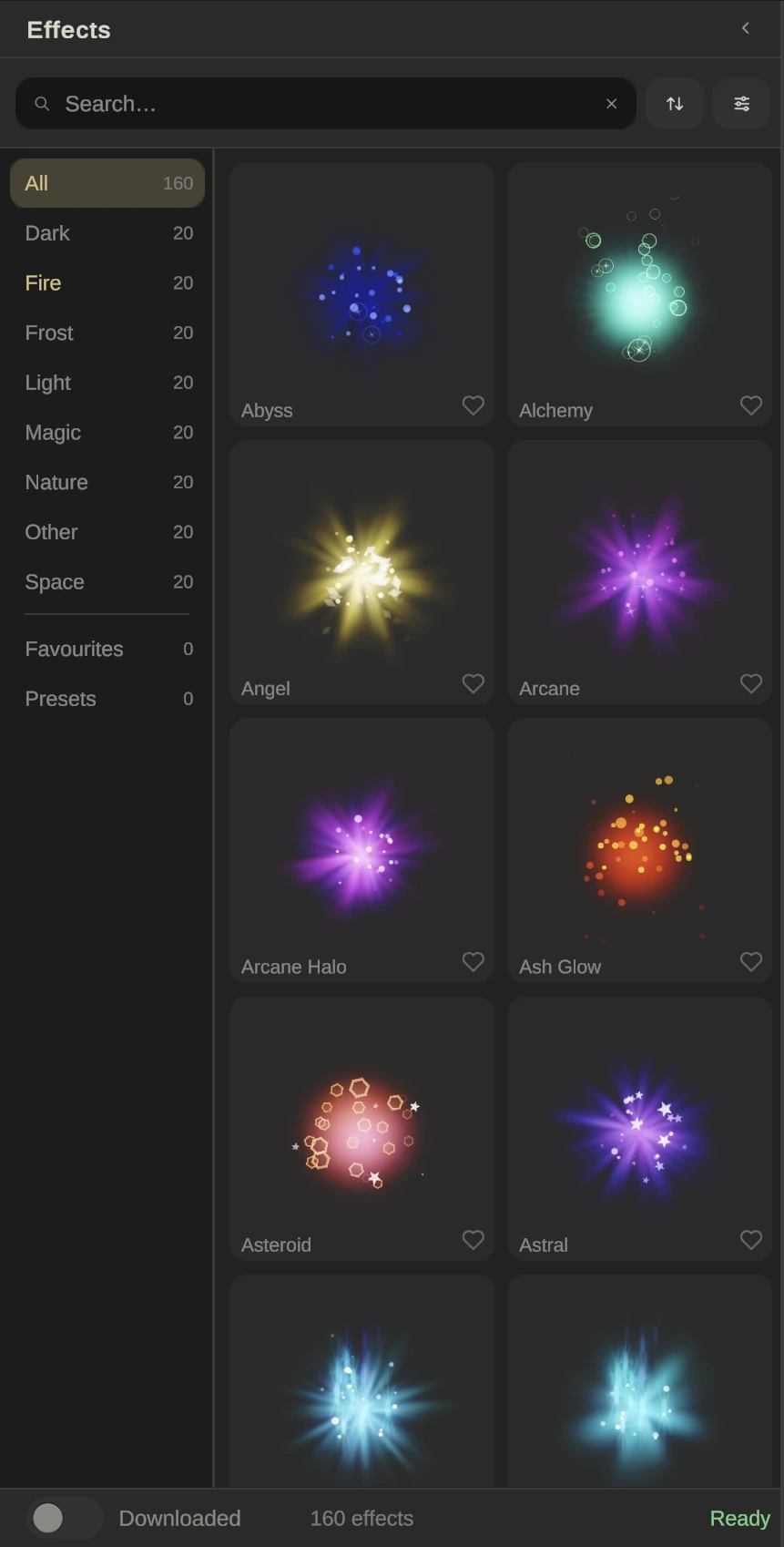
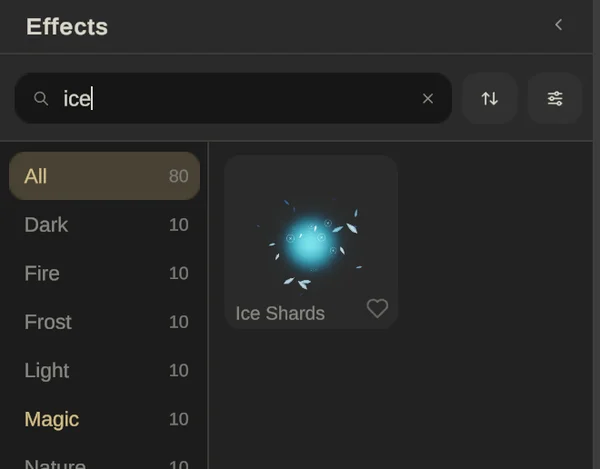
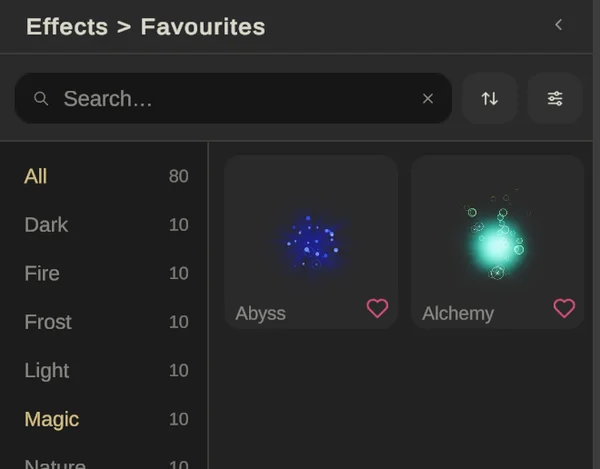
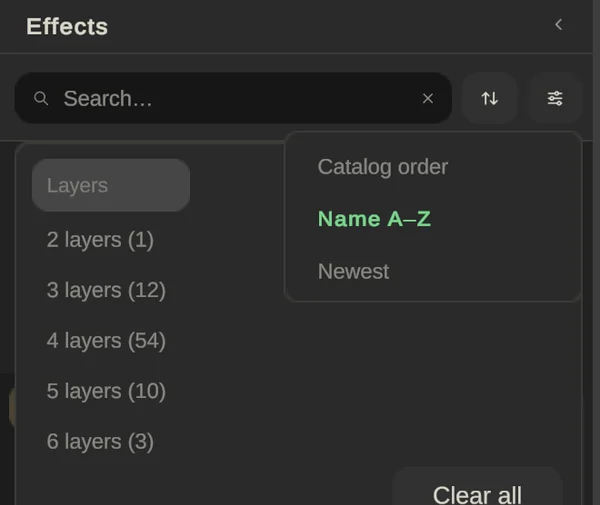
Search matches names and categories. The heart keeps an effect in Favourites, and Filters can narrow by how many layers an effect has.
Click to add
Click a card and the effect starts playing on your pet’s Main part straight away. Click again for a second copy. To make it come from another part, see Tuning effects.
Layers
Every effect is made of layers; Cinder has Halo, Cinders and Sparks. The Layers panel on the right lists them and says how many emitters there are. Click the effect row to tune all its layers together, or a layer row to tune just that one.
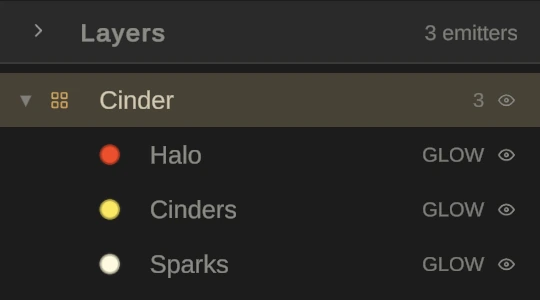
The tag on each layer tells you how it draws: GLOW adds light, SOFT is a plain picture that covers what’s behind it, and MIX is in between. The eye turns a layer off; hidden layers stay in the list but aren’t added to the pet or exported, which is handy for looking at one layer on its own.
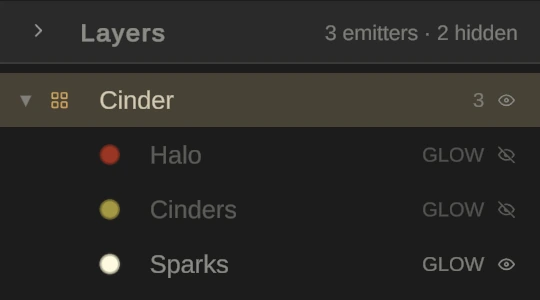
To remove an effect, select it and press X or Delete, or use the bin in the top bar. Right-click an effect row and choose Save as preset to keep your tuned version on the Presets shelf.
Done or Discard
Nothing is attached to the pet until you press Done. Discard asks first, then throws away everything you changed in this VFX session; your parts and paint are never touched.
