Painting basics
Open Paint, use the six tools, pick colours, and keep or throw away what you painted.
Open Paint
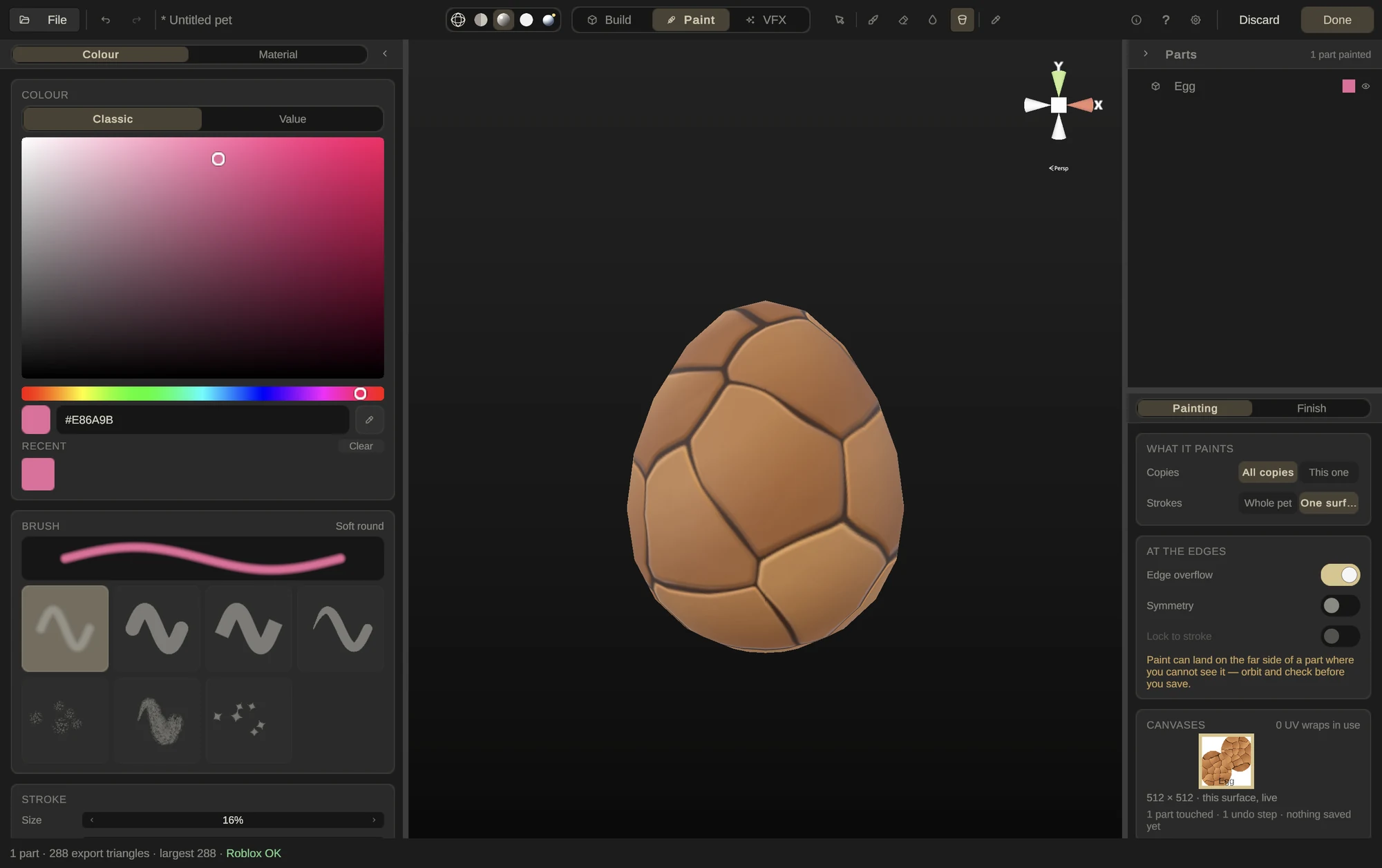
Press P. The left dock becomes your colour and brush panel, with two pages at the top: Colour and Material. The right dock lists the parts and has the Painting and Finish pages. Face parts are put away while you paint so you can reach the body behind them. Paint needs at least one part in the workspace.
The six tools

| Tool | Key | What it does |
|---|---|---|
| Select | S | Picks a part without painting it. F then frames it. |
| Brush | B | Paints the current colour. |
| Eraser | E | Puts the part’s original texture back, in the brush’s shape. |
| Blur | U | Softens what’s already there. Adds no colour. |
| Flood fill | G | Fills the surface under the cursor in one click. |
| Pick colour | I | Takes a colour off the pet, then hands you back the brush. Click the part of the pet you want the colour of. |
Drag across the pet to paint. [ and ] shrink and grow the brush, and Ctrl/⌘ Z undoes one stroke.
Colours
On the Colour page, Classic is a colour square and a hue strip, for picking by eye in one drag. Value gives sliders for hue, saturation and brightness, plus red, green and blue. Or type a hex code such as 3EC8FF into the field next to the swatch; the pipette button beside it switches to Pick colour.
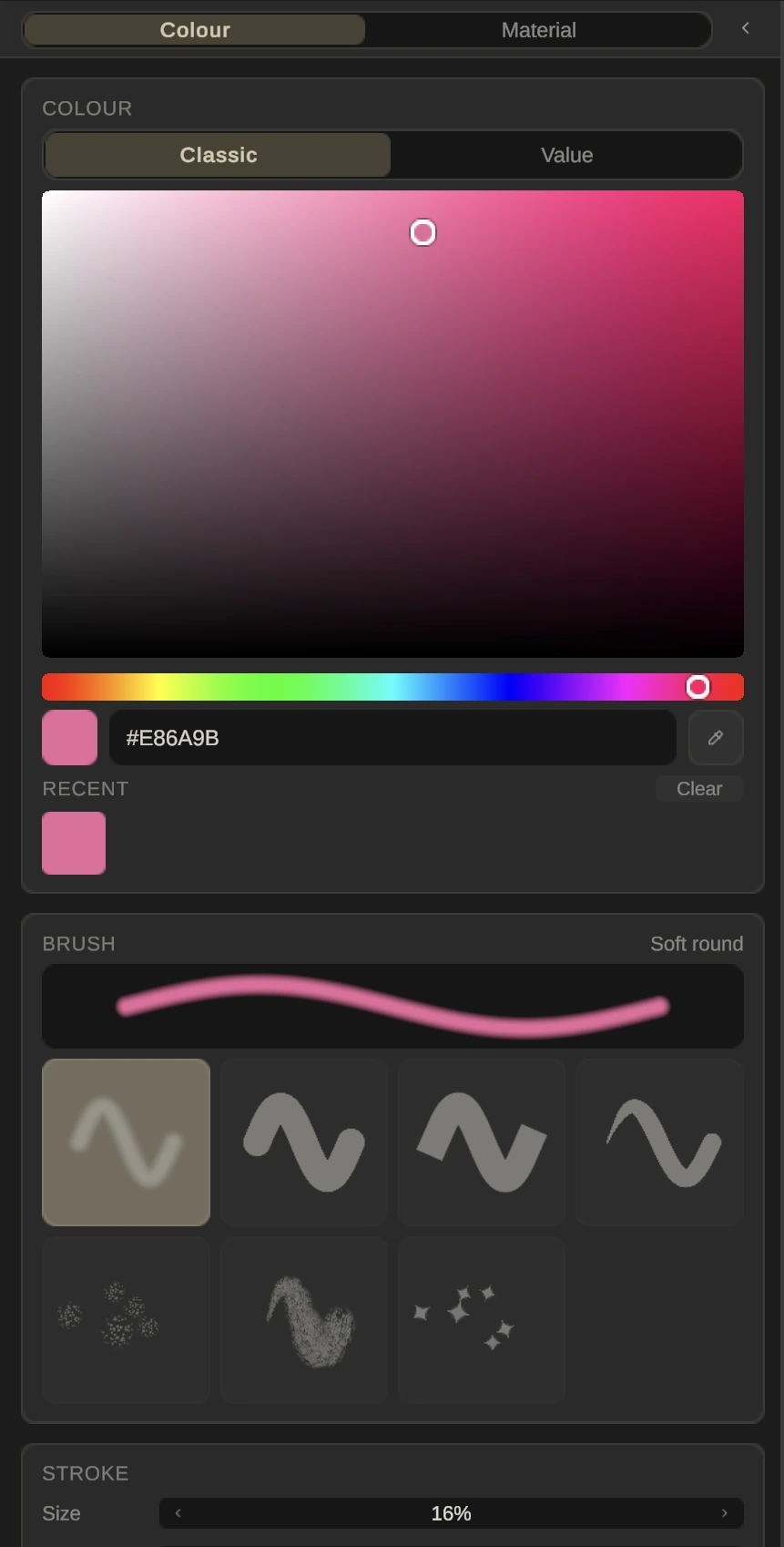
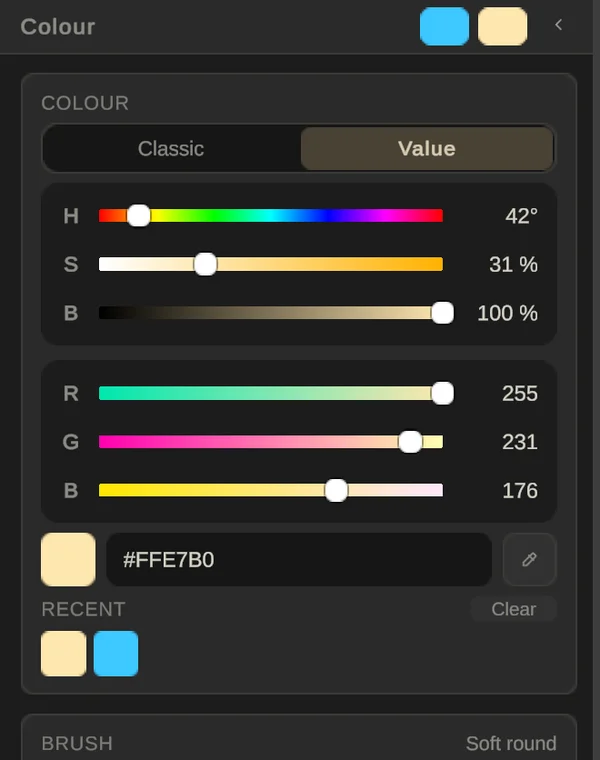
Recent keeps the colours you painted with last; Clear empties it. Paint with something other than a flat colour on the Material page: see Materials. Press T to jump straight there with the Fill tool.
Done or Discard
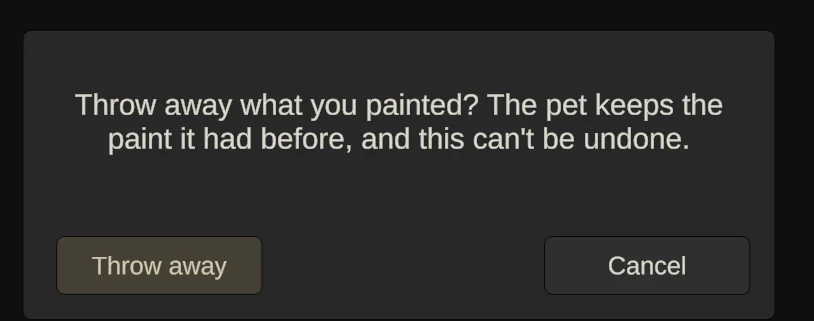
Done saves your paint into the pet and goes back to Build; the whole session becomes one undo step. Discard asks first, then throws away everything since you opened Paint; the pet keeps the paint it had before. If you’ve painted something, leaving with P or the mode switch asks Save, Discard or Cancel.