Grow
Grow rocks, crystals, roots, lights and more out of a painted part, and set how big, how many, where and on what.
What Grow is
Grow builds pieces on a part as real geometry, not paint: rocks, crystals, roots, flowers, lights and more. You can add any mix of kinds, and each kind ships as a part of its own in Roblox, welded to the part it grows on.
A kind grows out of a painted part, and its shape comes from the painting: paint the part with a material first. Until then the Grow box on the Material page says so.
Add a kind
- Paint the part with a material (see Materials), and keep it selected.
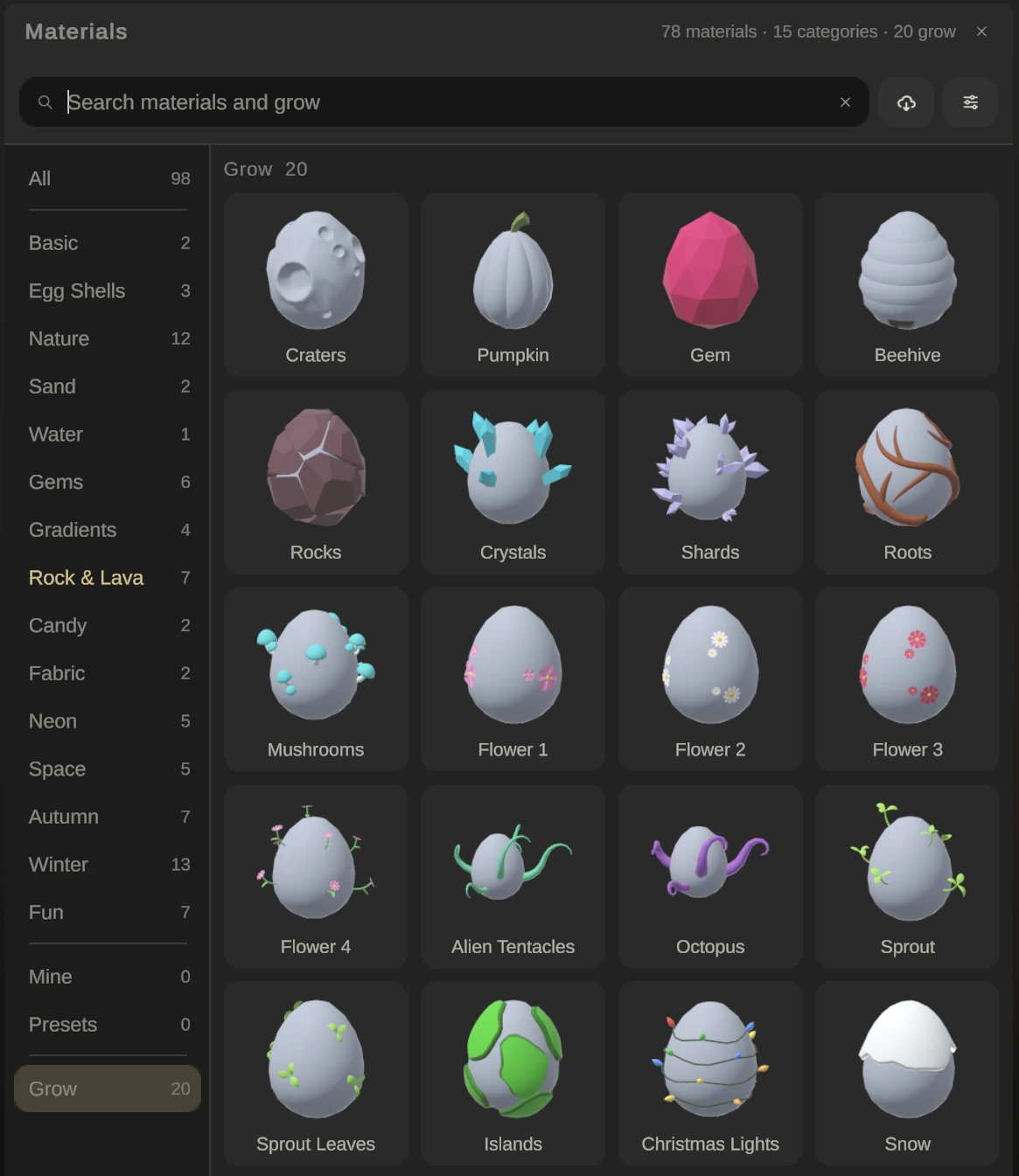
- On the Material page, press Add grow in the Grow box. It opens the material browser on its Grow cards.
- Click a card. It adds that kind to the selected parts. Hover a card for what it does: grows real pieces on the parts, click to add it; its settings open under Grow. A card for a kind that is already growing opens its settings instead.
The Grow box then lists what grows. Each kind has a row with its triangle count that you open for its settings, and the foot of the box says how many kinds are growing and what they cost in triangles. Remove takes a kind off the part; its settings are kept, so adding it again brings them back.
The settings of a kind
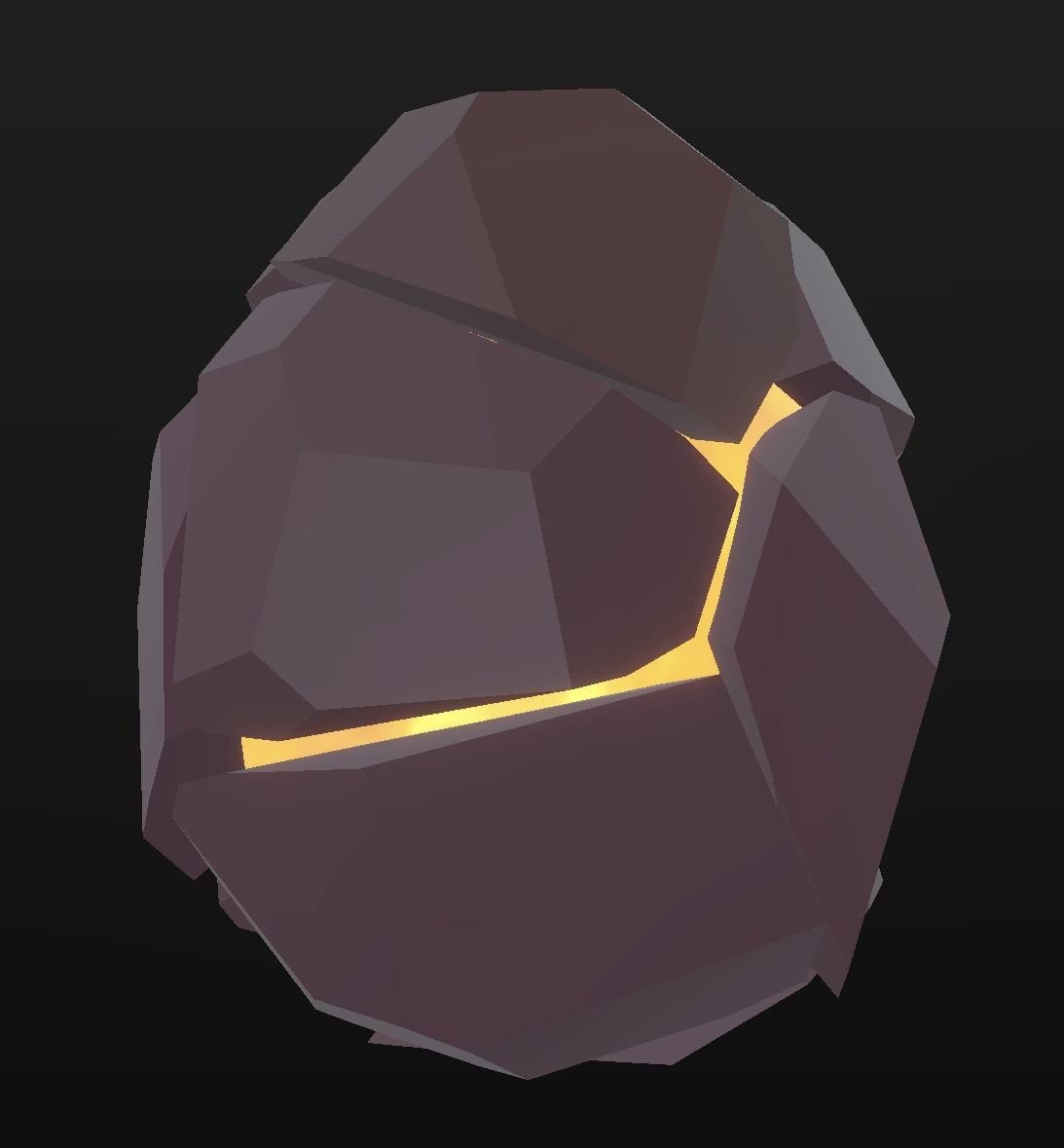
Press a kind’s name to open its settings, and press it again to close them. Hover any control for the app’s own explanation. This is Rocks, grown on an egg painted with Lava (pure):
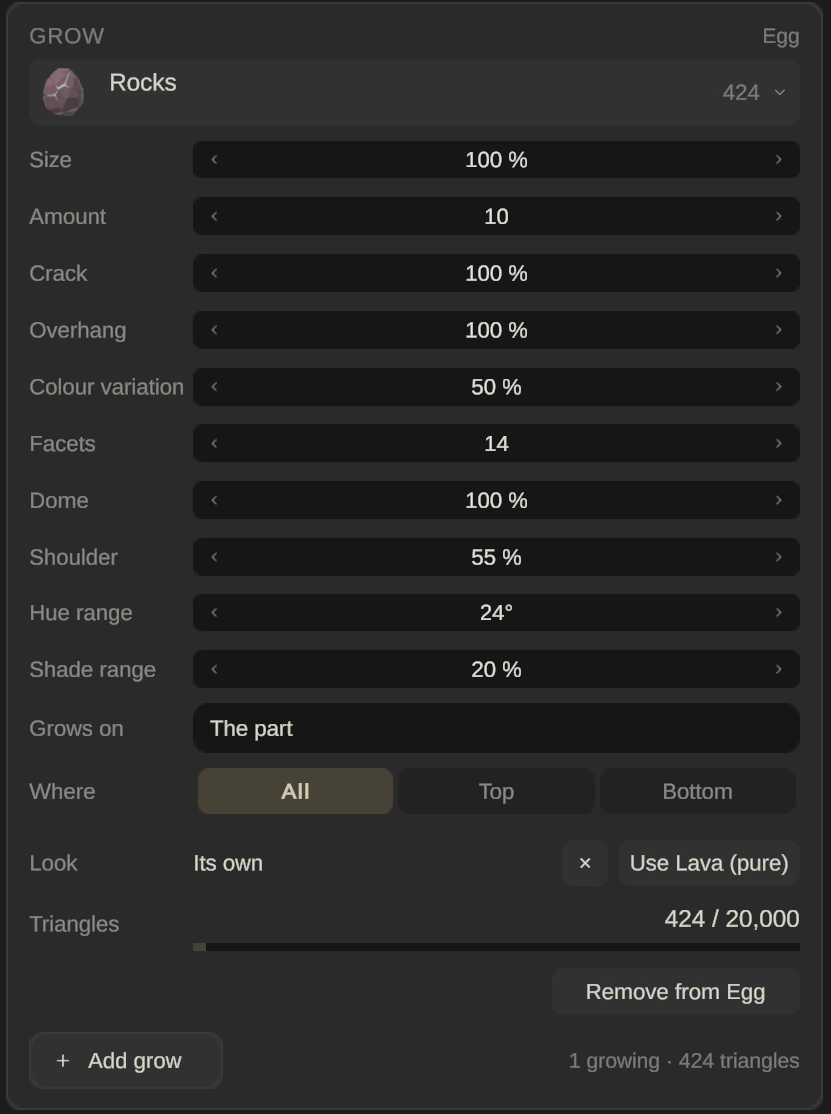
- Size: how big the pieces grow. 100 % is the approved look, and it runs from 0 to 200 %.
- Amount: how many grow, from fewest to most. It starts at the kind’s approved count.
- Where: All of the part, or only its Top or Bottom half. Not every kind has this row.
The rest of the list continues:
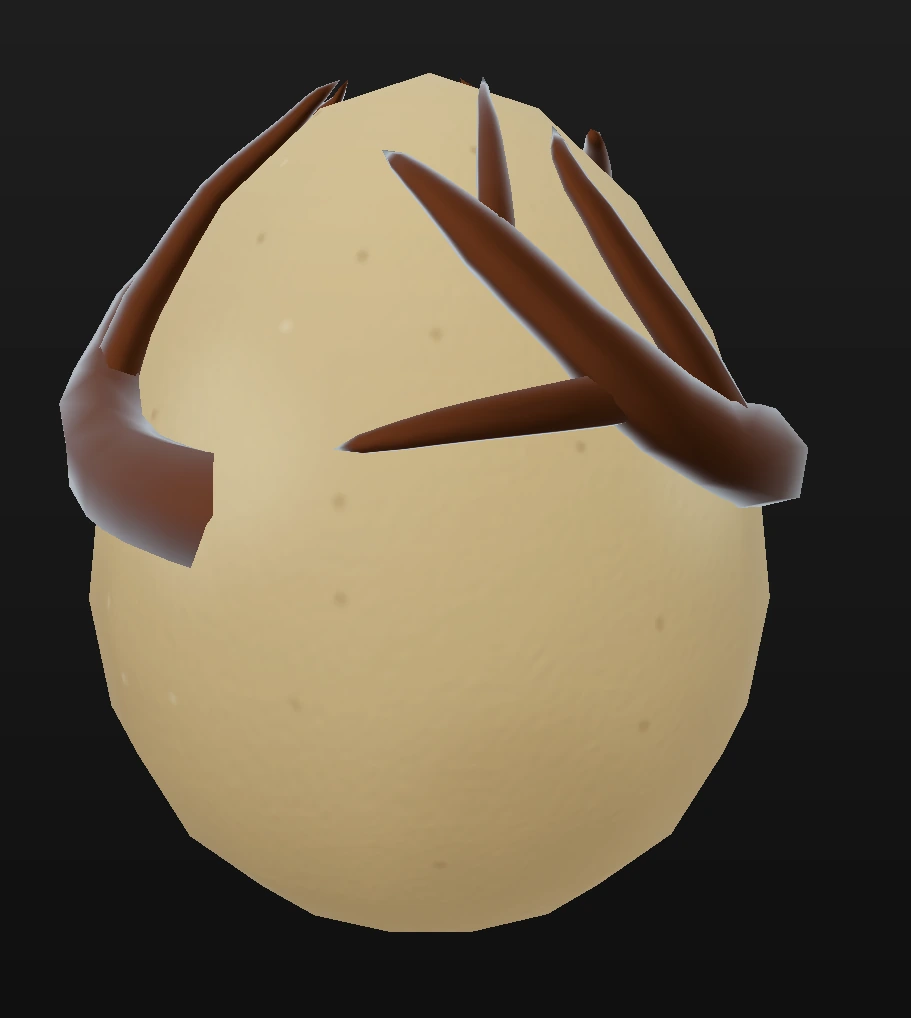
- Grows on: what the pieces stand on, either The part or the pieces of another kind. Any kind can grow on any other, except a choice that would make a loop, which isn’t offered.
- Look: Its own colours, or Use your brush’s material or brush colour. It reads Mixed when the parts of the kind wear different looks, and the cross clears it.
- Triangles: how many the pieces cost against Roblox’s limit of 20,000 per part.
- The kind’s own sliders under those, for example a rock’s Crack and Overhang or a root’s Reach and Curl. See Grow kinds.
Grow on another kind
Set Grows on to another kind to stack them, for example shards on top of rocks. If a kind you grow on is switched off, the row under it says these grow nowhere and offers the two ways out: turn that kind on, or pick The part.
Move one piece
The shortcuts card lists it under Paint mode: Move a grown piece: open its kind, Click. A grown piece can be moved with the gizmo and snapping, turned and scaled, with no limit. A piece you touch stays exactly where you put it when you change Amount, Size or a slider afterwards, and it keeps following its part wherever the part goes.
Moved pieces are listed in the kind’s box as N moved. Reset puts every moved piece of that kind back where the spread puts it, and one undo brings them back. Each moved piece also has its own Put back.
What works on what
Craters, Pumpkin, Gem and Beehive shape the part’s own surface, so they only work while the part’s Shape is Off or Bumps; with Real shape they are greyed out. See Shape.